
Turing on WordPress
The WordPress Connector brings Viglet Turing’s search and generative features to a WordPress site as blocks. This page lists each feature, the block that shows it, and whether it needs a language model in Turing. Health → AI features in wp-admin checks the generative ones against your Turing and names, for each, the block a visitor meets it in.
The features
Section titled “The features”| Feature | Where a visitor meets it | Needs a language model |
|---|---|---|
| Search as you type | Turing search block; the instant search (Ctrl+K and the theme’s search box) | No |
| Filters from the catalog | Turing search block: the facets your field mapping declares | No |
| Popular searches | Turing search block, with “Show popular searches” on | No |
| An answer with its sources | Turing search block, with “Answer questions from this site’s content” on | Yes |
| Filters a sentence names | Turing search block, with “Suggest the filters a sentence names” on | Yes |
| Related content | Related content block, or after the content of chosen post types | No |
| Ask the catalog | Ask the catalog block: answers with the items it cites; on WooCommerce, with price and Add to cart | Yes |
| Site assistant | Site assistant block, or a button in the corner of every page | Yes (Turing’s chat) |
| Compare products | Compare products block on WooCommerce: the table; its summary needs a language model | For the summary |
A block whose feature needs a language model stays hidden while Turing reports that feature off, so a page can hold it before Turing is set up.
Search as you type
Section titled “Search as you type”
Suggestions come from what the index holds, a misspelling is offered its correction, and synonyms set in Turing apply to every search. The search box is the Turing search block’s, or the instant search’s.
Filters from the catalog
Section titled “Filters from the catalog”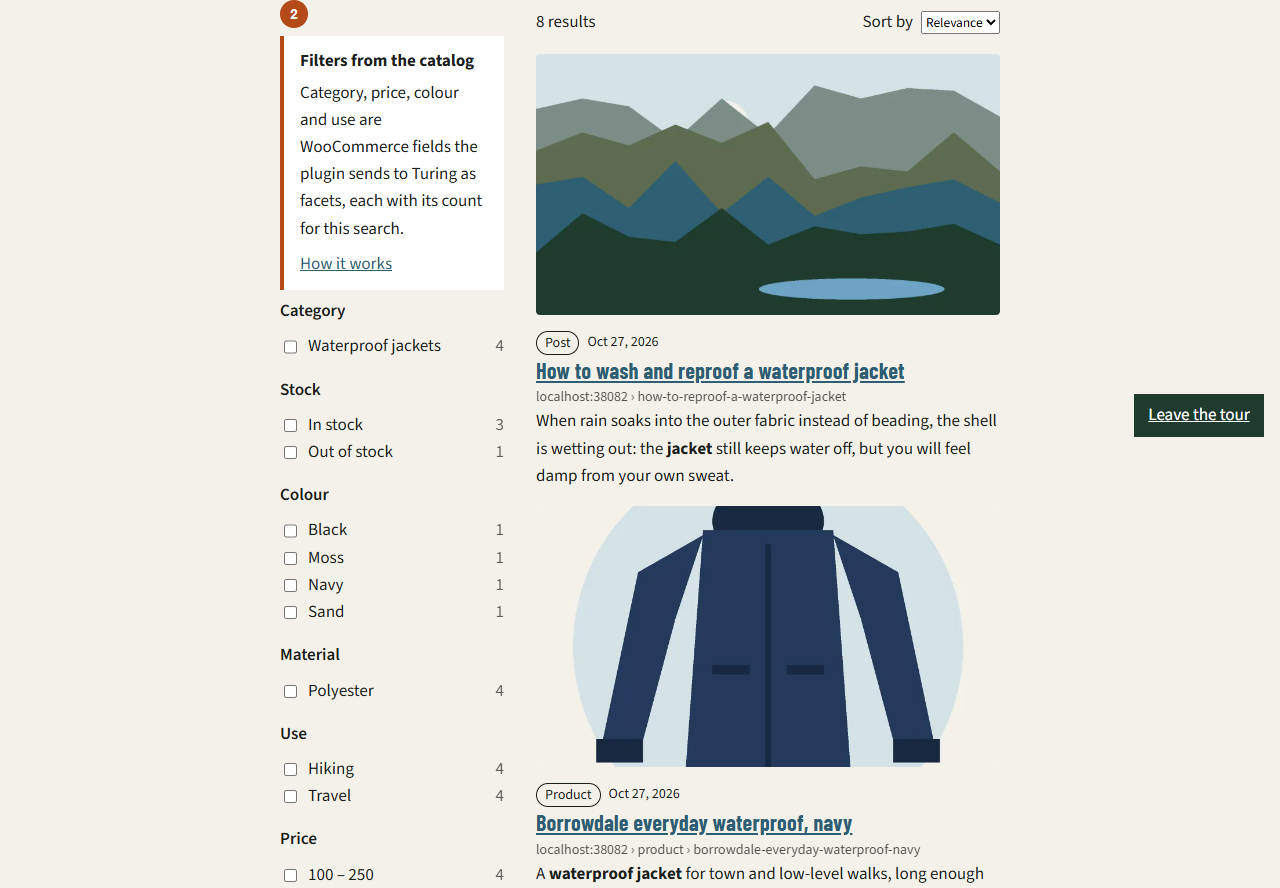
The fields you mark as facets on the Fields screen are sent to Turing with each post, and the block shows them beside the results with a count for the current search. On WooCommerce, category, price and attributes are facets too.
Ask the catalog
Section titled “Ask the catalog”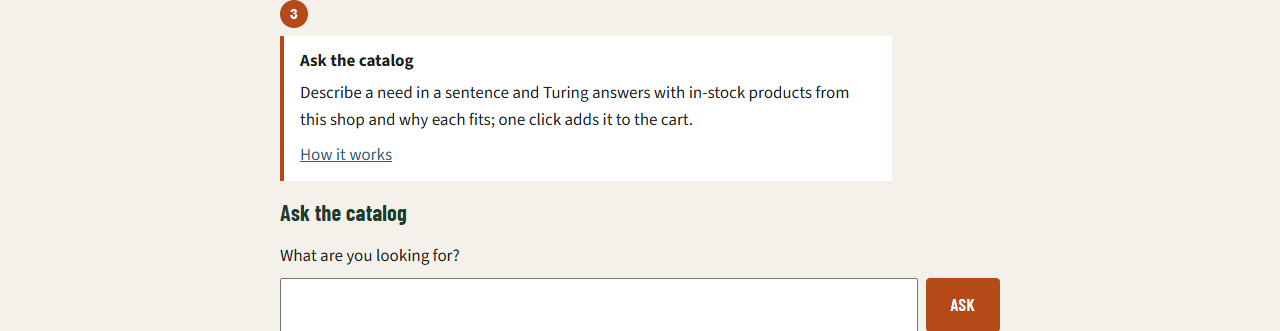
A visitor describes what they need in a sentence. Turing’s catalog copilot answers from the site’s content and lists the items it cites. On a WooCommerce shop each cited product shows the shop’s price, and Add to cart puts it in the cart; the copilot never adds anything by itself.
Site assistant
Section titled “Site assistant”
A button opens a chat over the site’s posts. Answers stream in, labelled as generated, with the posts they used as links and a Was this helpful? that reaches Turing. The conversation lasts across the pages of the visitor’s tab, so a cited post can be opened without losing it; New conversation starts again. The only action the assistant may take on the page is opening another page of the same site.
Place the Site assistant block where you want it, or turn on Settings → Search → Generative AI → Site assistant on every page for a button in the corner of every page.
See them together
Section titled “See them together”The plugin’s Docker stack has a demo storefront, Tarnfell, with a Showcase page holding the
search, the catalog copilot and the Site assistant. How it works in its footer (?tour=1)
numbers each Turing feature on the page and opens a note on it:
run-docker.cmd demo :: the demo on http://localhost:38082, the showcase at /showcase/npm run e2e:tour in the plugin’s wordpress/ folder walks that page and records a video and
the screenshots on this page. See Try it locally.